Make Your Own Recomp Texture Pack
Nintendo 64 games are instantly recognisable from their charming1 low-resolution textures. Recomps improve many things about a game, but generally leave those textures intact. For anyone wanting a more modern look, or a different artistic style entirely, texture packs offer a ready-made solution. As the name suggests, they let you replace in-game textures with images of your choice, often at much higher resolutions.
For all their promise, texture packs are a rare sight outside the most popular games, such as Super Mario 64, Ocarina of Time and Mario Kart 64. This is unfortunate because making a texture pack is not especially difficult2 and there’s no shortage of talented artists in the retro gaming community. Indeed, I’m very grateful to M. Lee Lunsford, Moz and Jellsoup for contributing artwork to Snowboard Kids: Recompiled and Snowboard Kids 2: Recompiled.
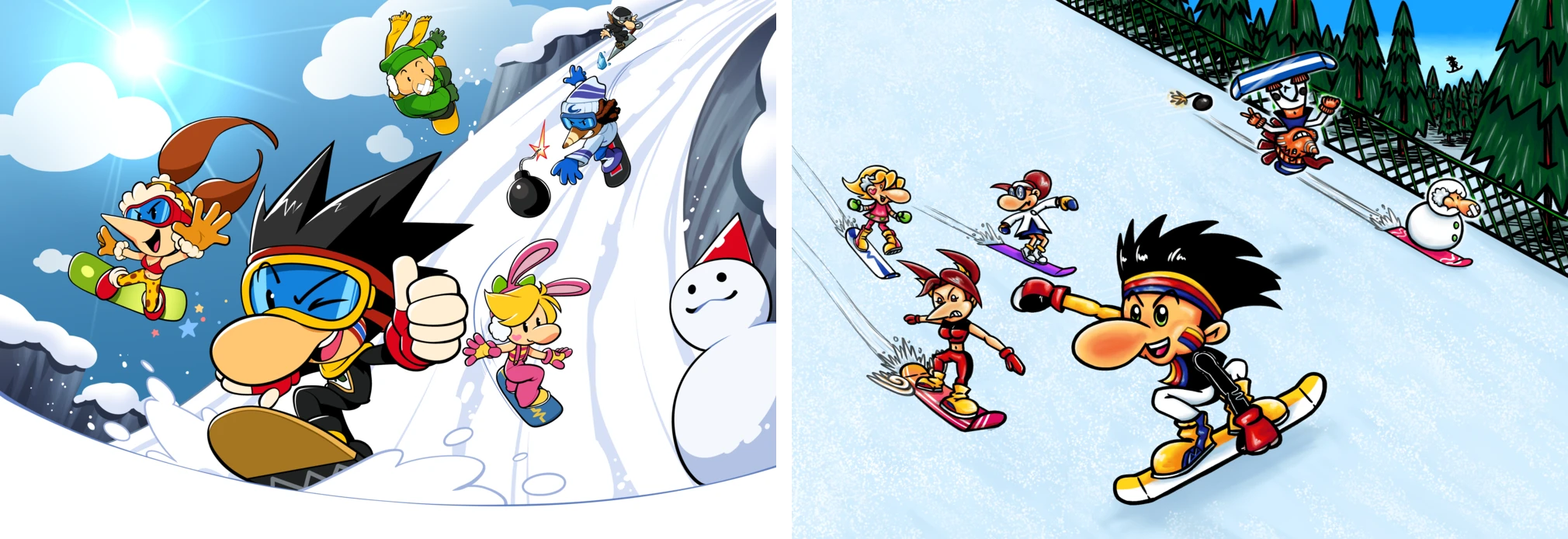
Launcher artwork by M. Lee Lunsford (left), and Moz (right).
My theory is that the technical steps put off otherwise interested people, especially those unfamiliar with recomps and command-line tools.
This guide walks through making a small texture pack using Snowboard Kids: Recompiled as an example. All you’ll need is a working copy of the game. Everything else is embedded or linked on this page, and there’s no command line involved!
What we’re going to do
A texture pack tells the game to use our images in place of its original artwork. We’ll find a texture in the debugger, save it as a PNG, edit it, then replace it in game. Once we’re happy with the result, we’ll bundle it into a mod that other people can install.
1. Enable developer mode
RT64, the renderer used by these recomps, includes a developer menu that lets us collect and replace textures.
In recent builds of Snowboard Kids: Recompiled and Snowboard Kids 2: Recompiled, go to Settings → Graphics and enable Dev Mode. Click Apply, then restart the game.
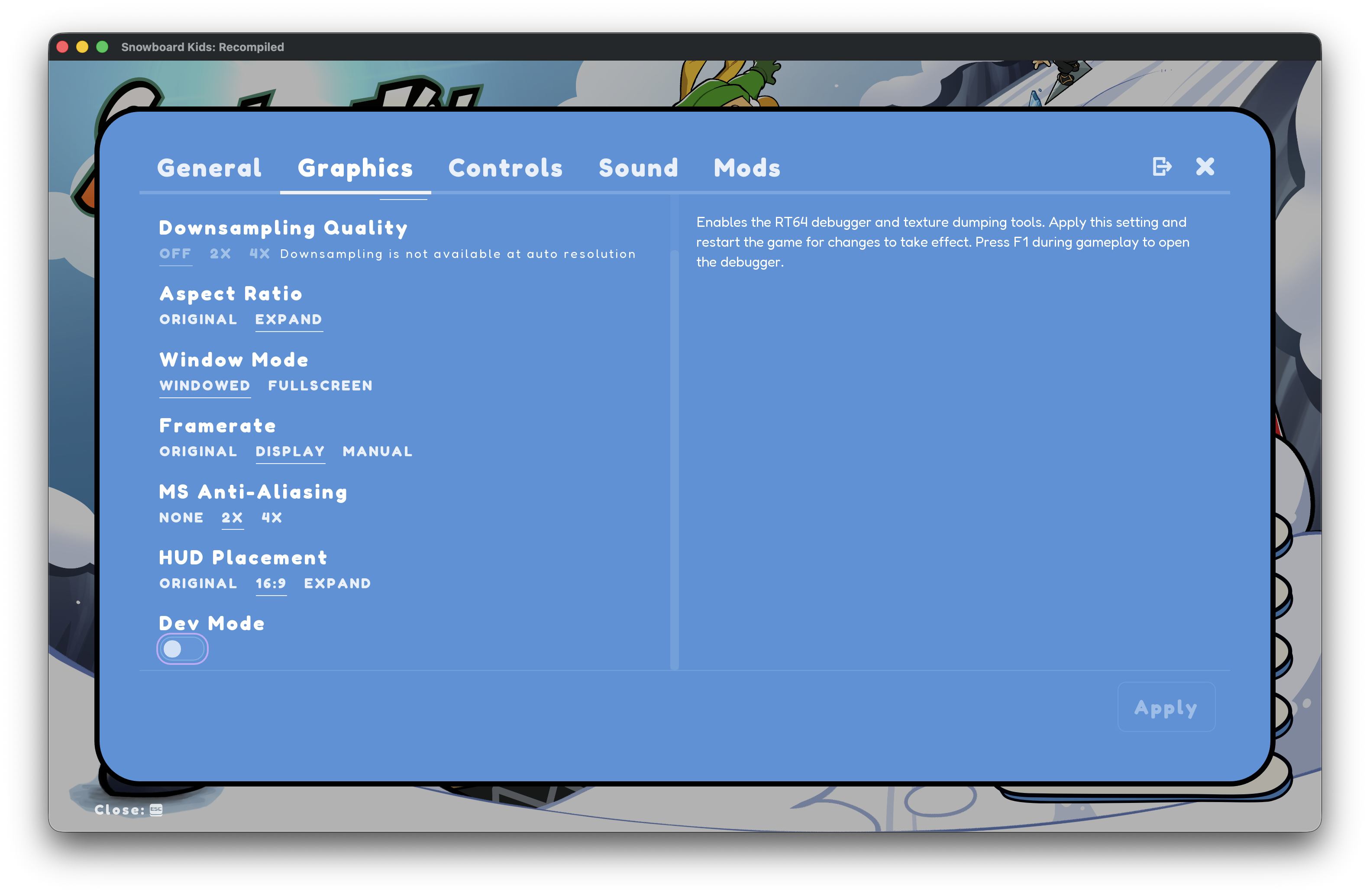
Scroll to the bottom of the Graphics settings to find Dev Mode.
If that worked, you can move on to the next step!
If your game doesn’t have that option, run the game once, close it, then open its settings folder. For Snowboard Kids: Recompiled:
- Windows: Press Windows+R, paste
%LOCALAPPDATA%\SnowboardKidsRecompiled, and press Enter. - macOS: In Finder, choose Go → Go to Folder, paste
~/Library/Application Support/SnowboardKidsRecompiled, and press Return. - Linux: Open
~/.config/SnowboardKidsRecompiledin your file manager.
Other recompilations generally use their own folders in the same location.
Make a backup of graphics.json, then open the original in a plain-text editor. Change "developer_mode": false to "developer_mode": true and save it.
2. Find and save a texture
Start the game and visit the character-select screen. We’re going to replace a couple of Jam’s textures.
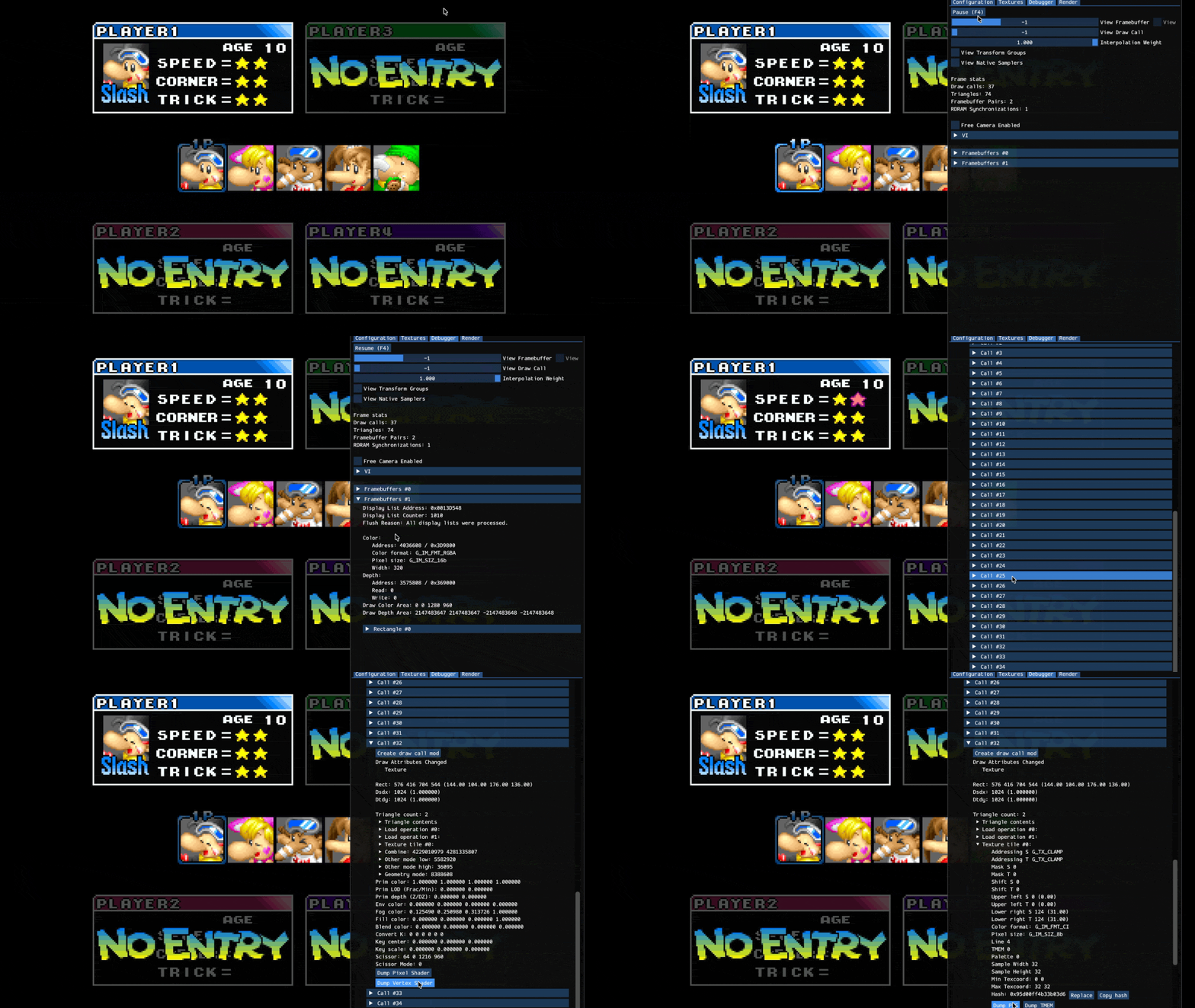
This is the fiddliest part: finding the drawing operation, or ‘draw call’, that uses the texture we want to edit.
- Press F1 (Fn+F1 on some keyboards) to open the developer menu.
- In the debugger, click Pause (F4) to freeze the scene.
- Right-click the part of Jam you want to edit. Inspect the draws underneath it and expand the relevant texture tile until you find the matching preview.
- Click Dump PNG, next to the replacement controls, and save the image somewhere easy to find. If that button is missing, use the fallback below.
That gives us an ordinary image file to work with. Some artwork is split across several textures, so we’ll stick with individual textures for now. Leave the game paused here while you edit.
Automatically dump textures
This is another way to collect textures. If you saved a PNG in the previous step, you can skip to step 3.
RT64 only added Dump PNG in October 2026, so your recomp may not have it yet. Older builds offer Dump TMEM, which saves raw memory as a .bin file. To turn that into an image, we also need the texture’s settings. The easiest way to get both is a folder dump:
- Click Copy hash beside Replace and paste it somewhere for reference. This identifies the texture you found.
- Open Textures, click Start dumping textures, and choose a new folder called
Dumps. - Unpause briefly so the game draws the texture, then pause again and click Stop dumping textures.
- Select
Dumpsin the texture converter. Keep its.tmemand.tile.jsonfiles together. - Extract the downloaded ZIP and find the PNG in
imageswhose filename starts with the hash you copied. Continue below with that image.
Even if Dump PNG is available, automatic dumping can be quicker when collecting lots of textures. You can browse the images afterwards instead of saving them one at a time.
3. Edit the texture
Create a folder called MyPack for your texture replacements. Edit the PNG you just saved, keeping its proportions and any transparent areas intact, then save the result inside MyPack. Keep the original separately so you can go back to it.
For this example, I’m running Jam’s textures through an online image upscaler. You can redraw them, recolour them, or do something much more interesting.
4. Replace the texture in game
Return to the paused game. If your texture is no longer selected, find it again using the steps above. Now we can load its replacement:
- Open Textures, click Load directory, and select
MyPack. - Switch back to the debugger and click Replace on the selected texture tile. Choose your edited PNG inside
MyPack. - Return to Textures and click Save directory.
You should now have an rt64.json file in MyPack. This records which original texture your image replaces. Keep it with your replacement images.
Unpause, press F1 to hide the developer menu, and check your work. If you make more edits, use Load directory again to reload the images. Repeat the process for any other textures you want to replace, saving the directory after each new replacement.
Here’s a video of me replacing two of Jam’s textures:
Replacing two of Jam’s textures with higher-resolution versions.
5. Package your mod
Now we’ll turn MyPack into an .rtz file for distribution. Packaging converts the images to a more efficient format and creates a cache to help reduce texture-loading delays.
You can package textures with the official command-line tool, but that would break our no-command-line rule. So I’ve made a simple web alternative, embedded below. Everything happens locally; your images stay on your computer.
If you’d like an icon in the mod menu, put an image named thumb.png in MyPack too.
Select MyPack, fill in your pack’s details, and choose Pack & download. For this example, the Game ID is snowboardkids. Save the downloaded .rtz somewhere outside MyPack.
If the embed doesn’t load, open the packer in a new tab.
6. Admire your finished work
Restart the game, open Mods, and install and enable your .rtz file. Head back to the game to admire your work.
I’ve updated all the character-select portraits using the upscaling tool mentioned earlier. Here’s how they compare with the originals:
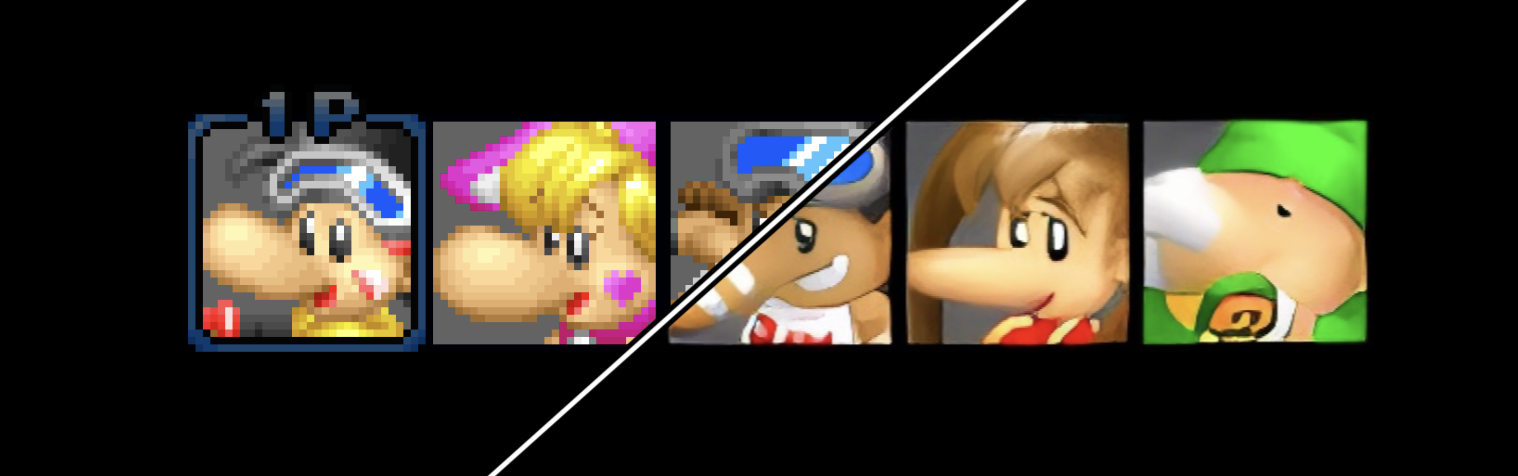
Original textures on the left of the divider; upscaled textures on the right.
If you’ve made it this far, you might enjoy the Snowboard Kids Community Discord.


Perhaps a controversial opinion. It’s impressive how much detail artists managed to fit into a vanishingly small amount of space. ↩︎
The texture pack creation process is well documented. ↩︎
Comments
Loading Bluesky comments...